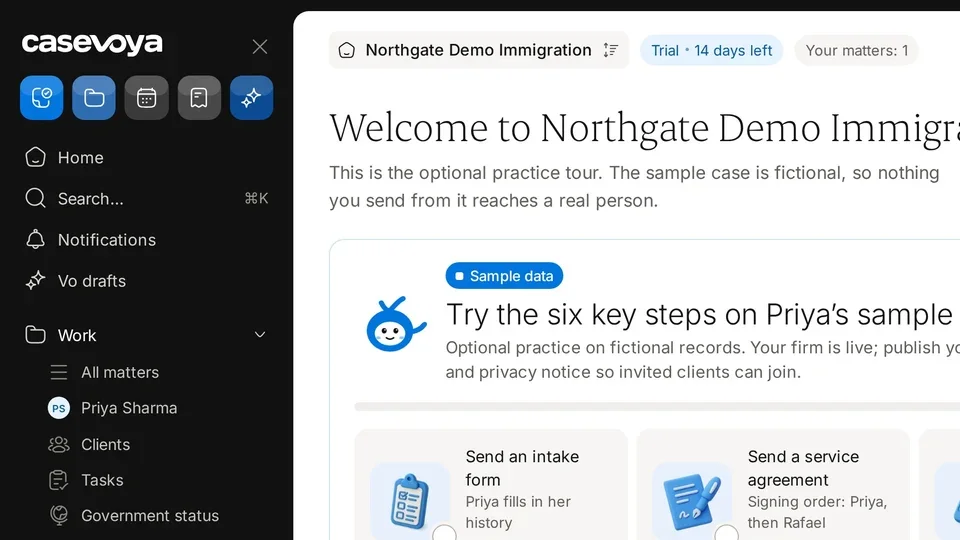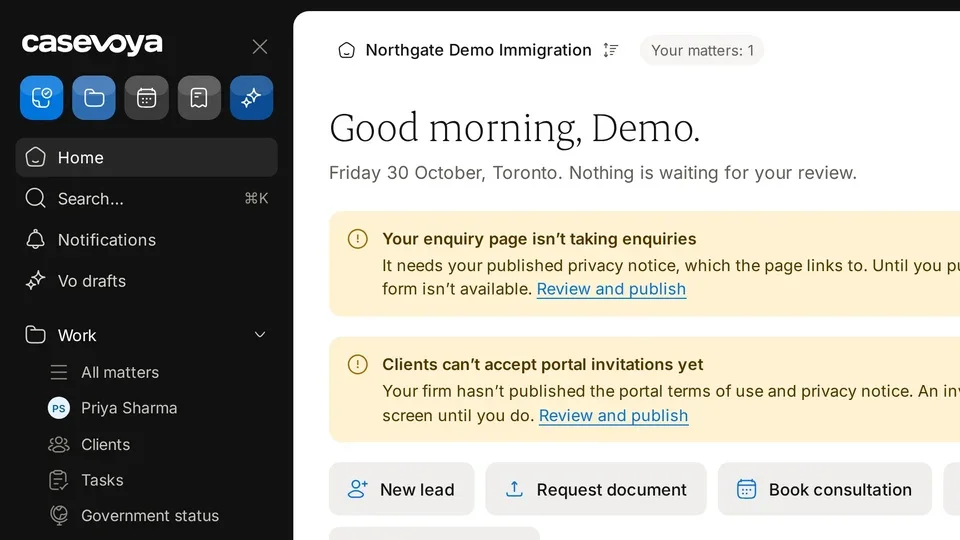
Invite your staff

Staff lets you invite team members and see how each person signs in and what role they hold. Here is a quick tour.

1:18 video·Captions and transcript·1 written guide

01Overview
0:00 / 1:18

Chapters

10

Invite your team and choose roles

Invite staff by email and give each person only the access their job needs. Clients and family members never take up staff seats.

  1. 1

    Open People and invitations

    In the sidebar, under Practice, choose People and invitations. On the Staff tab, select Invite staff.

  2. 2

    Add their email and a role

    Owner, licensed consultant, case manager, finance or reception. You can narrow access further by office or team.

  3. 3

    Send the invitation

    It works once and expires after 7 days. If it expires, send a new one.

  4. 4

    They accept and set up two-step sign-in

    Until they do, they can’t open any client record.

  5. 5

    Check the record

    Each invitation shows its status, such as Accepted, and whether Two-step is on. Changes are kept in the firm’s audit log.
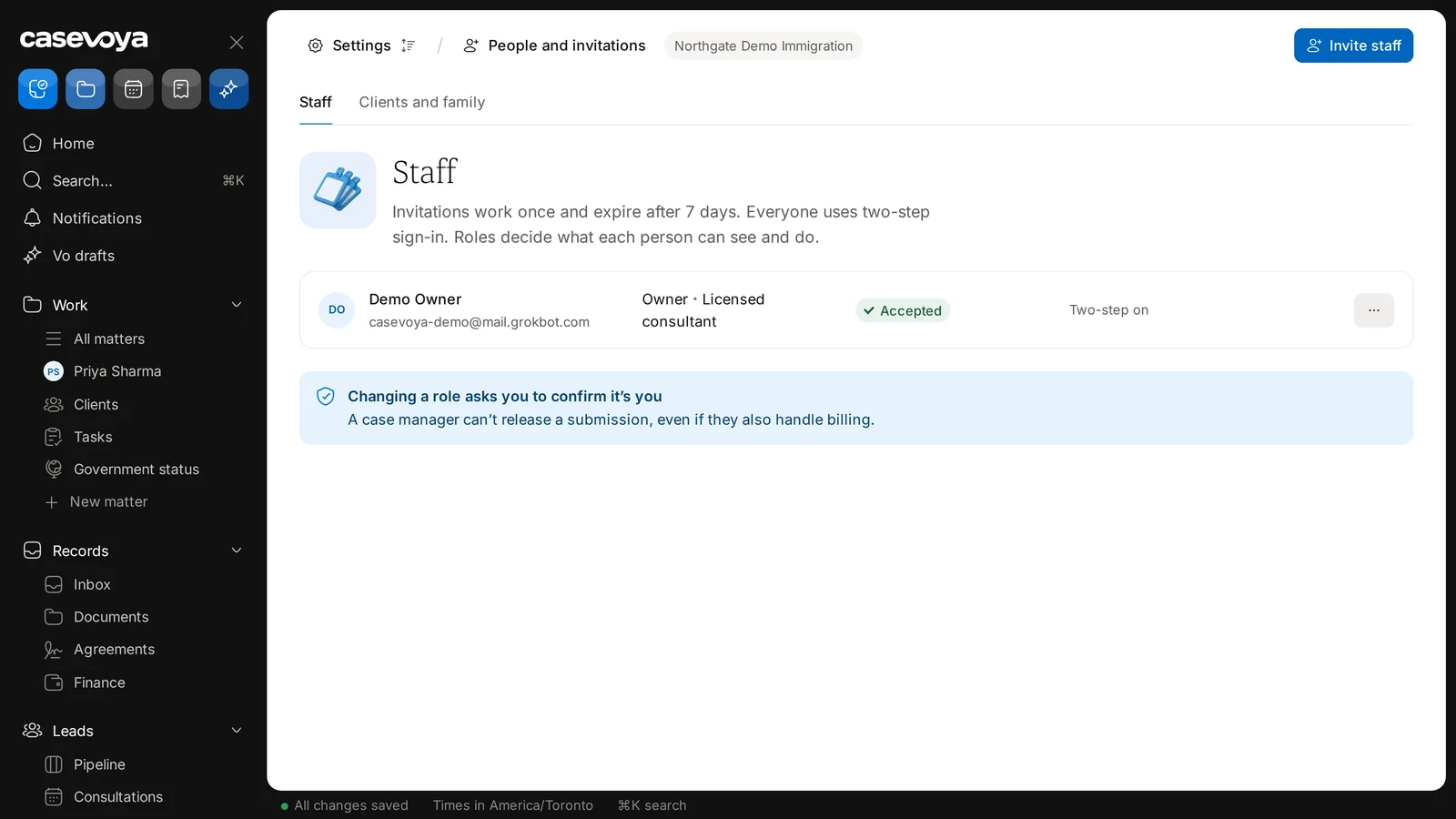
Use Invite staff on Settings › People and invitations. Sample data.
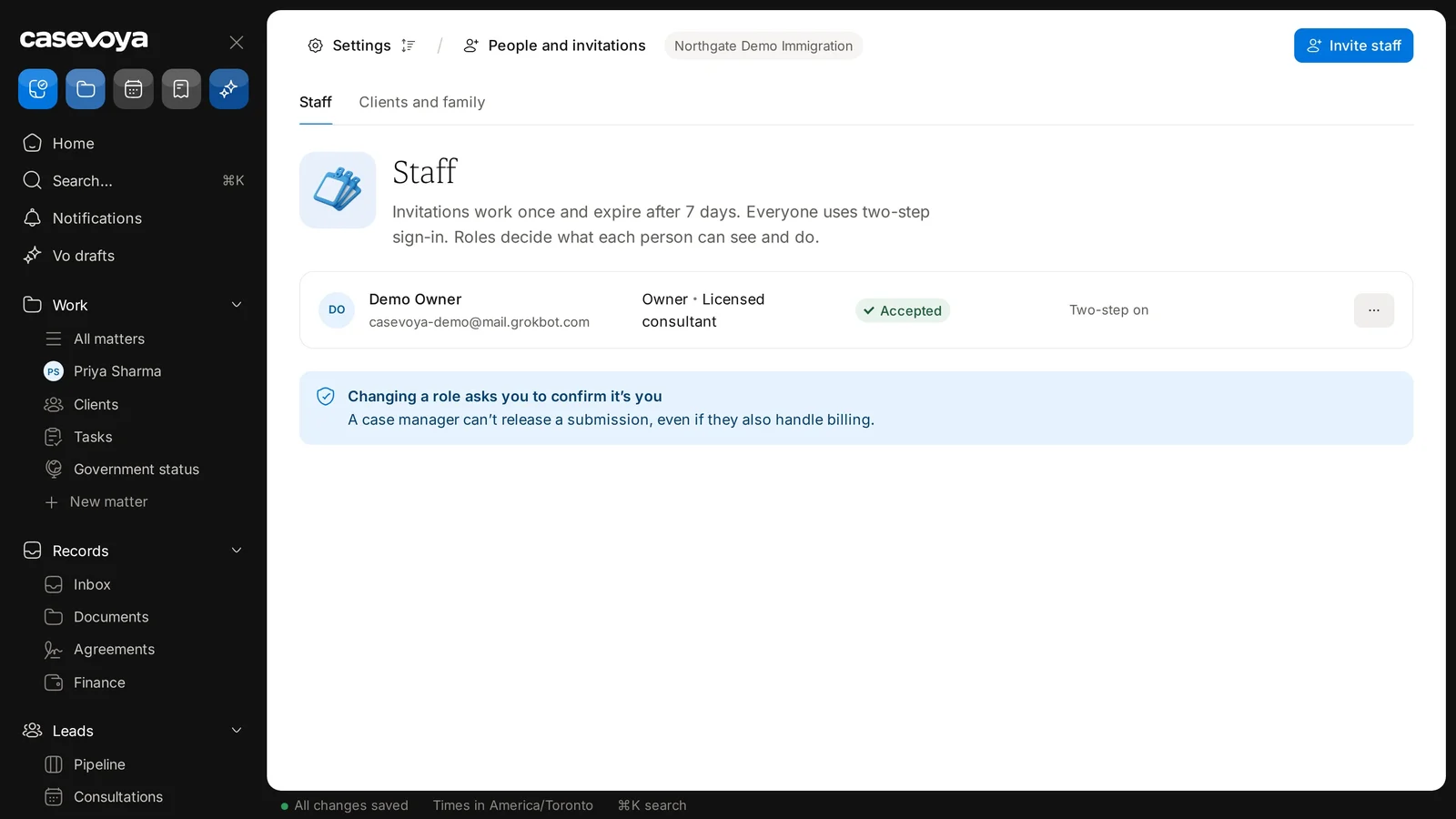
A staff member’s invitation status and two-step sign-in. Sample data.

Screen by screen

Each frame comes from the walkthrough, with the part being explained outlined. Select a frame to play from that moment.

  1. 02Find it

    It is under Settings, then People and invitations, shown here for Northgate Demo Immigration, a demo firm.

  2. 03Two tabs

    Two tabs split the list: Staff, which is open now, and Clients and family.

  3. 04Ground rules

    The description sets three ground rules: invitations work once and expire after 7 days, everyone uses two-step sign-in, and roles decide what each person can see and do.

  4. 05Staff row

    The only row is the demo firm's owner account, Demo Owner. Its role reads Owner and Licensed consultant.

  5. 06Status

    The invitation status shows Accepted, and Two-step on confirms that two-step sign-in is turned on.

  6. 07More menu

    At the end of the row is a More button for that person.

  7. 08Role safety

    The blue note says changing a role asks you to confirm it's you. Also, a case manager can't release a submission, even if they also handle billing.

  8. 09Invite staff

    To add someone, use Invite staff at the top right. The status bar shows All changes saved, with times in America/Toronto.

  9. 10Recap

    To recap: open People and invitations, read the three rules, check each person's role and status, confirm role changes carefully, and invite staff. Next: Clients and family.

Did this answer your question?

More in Getting started