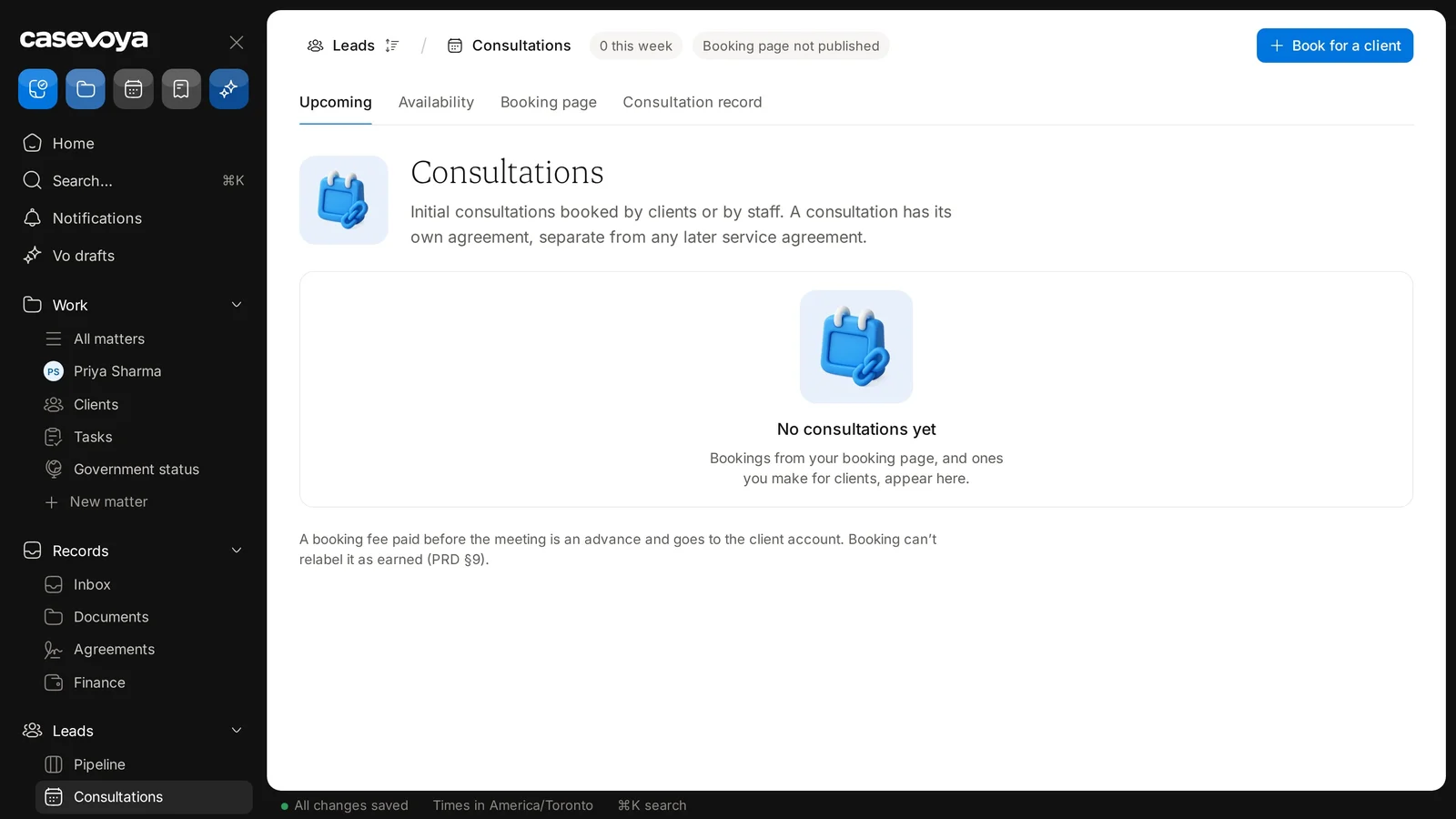
Consultations lets you track initial consultations booked by clients or by staff, all in one place. This tour covers the page.
1:19 video·Captions and transcript·2 written guides
01Overview
0:00 / 1:19
Chapters
10
Book, reschedule or cancel a consultation
Offer times from real staff availability, with buffers and time zones handled for you.
1
Set availability
Go to Leads › Consultations and open the Availability tab. Set working hours, call length and buffers.
2
Publish your booking page
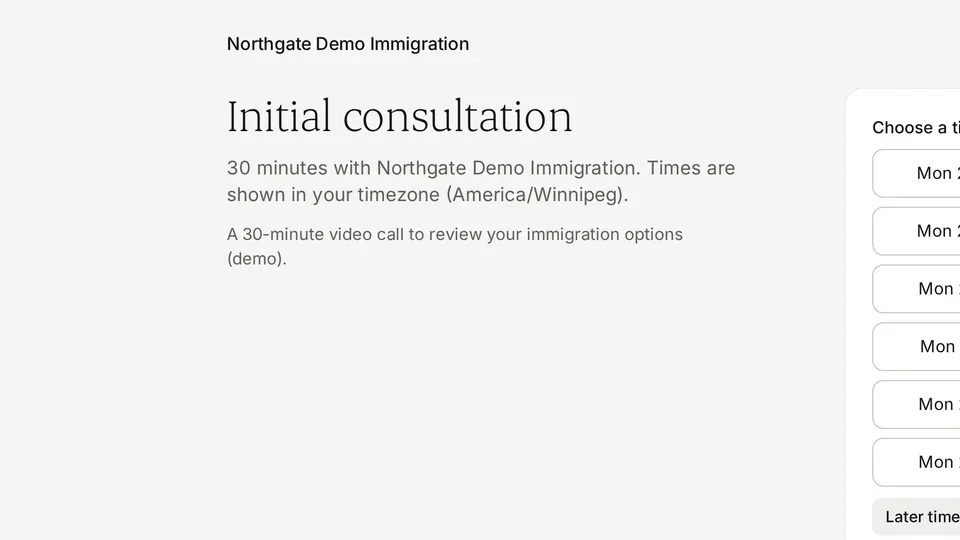
On the Booking page tab, publish it (the header shows Booking page not published until you do). Clients pick a time in their own time zone. Staff can use Book for a client.
3
Reschedule
Open the appointment and choose a new time. Both sides get an update.
4
Cancel
Cancel with a reason. The slot reopens straight away.
Consultations tabs: Upcoming, Availability, Booking page and Consultation record.
A booking fee paid before the meeting is an advance and goes to the client account.
Record a no-show or a lost reason
Knowing why leads don’t continue helps you plan. Recording it takes two clicks.
1
Mark a no-show
On the appointment, choose No-show. The lead gets a follow-up task.
2
Close a lead as lost
In Leads › Pipeline, move the card to Lost and pick a reason.
3
Add a note if useful
Notes are internal and never shown to the person.
The Stage filter on the lead pipeline, which includes Lost. Sample data.
Screen by screen
Each frame comes from the walkthrough, with the part being explained outlined. Select a frame to play from that moment.
02Where you are
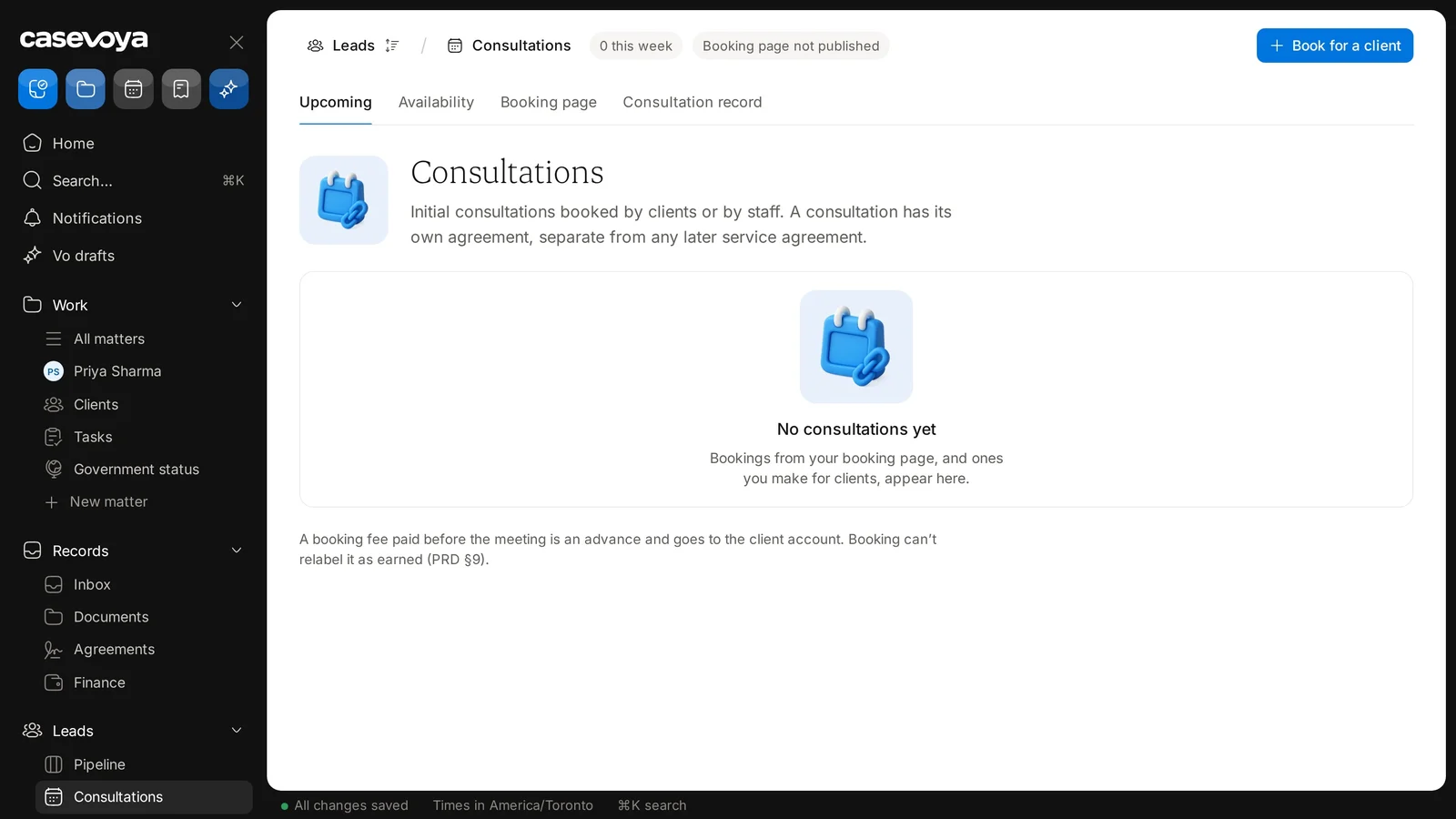
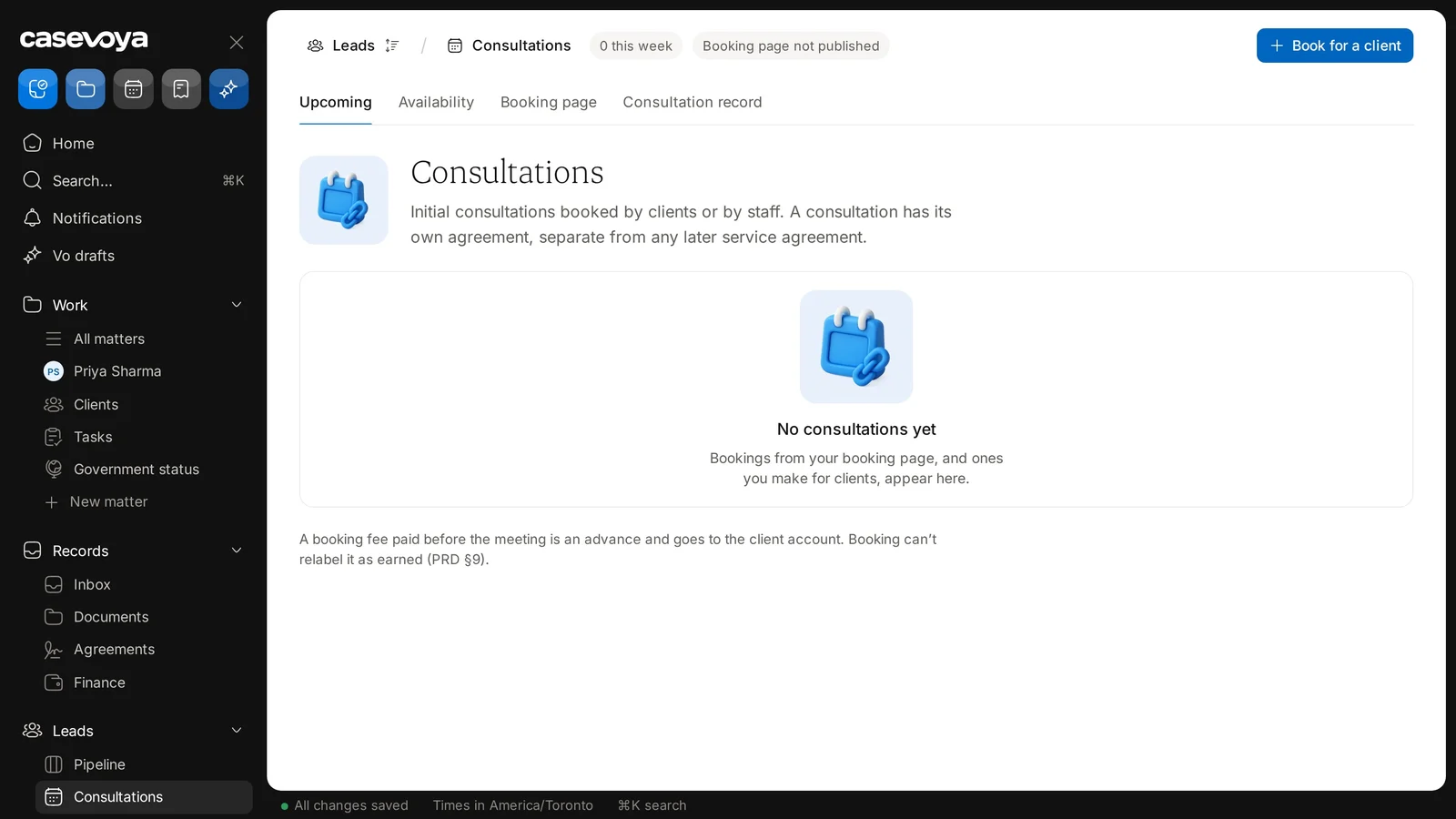
The breadcrumb at the top shows Leads, then Consultations, so this page lives in the Leads area.
03Header chips
Next are two chips: one reads 0 this week, and the other reads Booking page not published.
04Tabs
Four tabs organize the page: Upcoming, Availability, Booking page and Consultation record.
05Own agreement
The description explains that a consultation has its own agreement, separate from any later service agreement.
06Empty list
There are no consultations yet, so the list is empty. Bookings from your booking page, and those you make for clients, will appear here.
07Book for client
To add one yourself, use the Book for a client button at the top right.
08Booking fees
As the footnote explains, a booking fee paid before the meeting is an advance and goes to the client account. Booking can't relabel it as earned.
09Footer
At the bottom, the footer confirms All changes saved and shows times in America/Toronto.
10Recap
In short: check the breadcrumb, read the header chips, switch tabs, book for a client, and remember that pre-meeting fees are advances. Next: Pipeline.
Overview. Consultations lets you track initial consultations booked by clients or by staff, all in one place. This tour covers the page.
Where you are. The breadcrumb at the top shows Leads, then Consultations, so this page lives in the Leads area.
Header chips. Next are two chips: one reads 0 this week, and the other reads Booking page not published.
Tabs. Four tabs organize the page: Upcoming, Availability, Booking page and Consultation record.
Own agreement. The description explains that a consultation has its own agreement, separate from any later service agreement.
Empty list. There are no consultations yet, so the list is empty. Bookings from your booking page, and those you make for clients, will appear here.
Book for client. To add one yourself, use the Book for a client button at the top right.
Booking fees. As the footnote explains, a booking fee paid before the meeting is an advance and goes to the client account. Booking can't relabel it as earned.
Footer. At the bottom, the footer confirms All changes saved and shows times in America/Toronto.
Recap. In short: check the breadcrumb, read the header chips, switch tabs, book for a client, and remember that pre-meeting fees are advances. Next: Pipeline.
 Casevoya