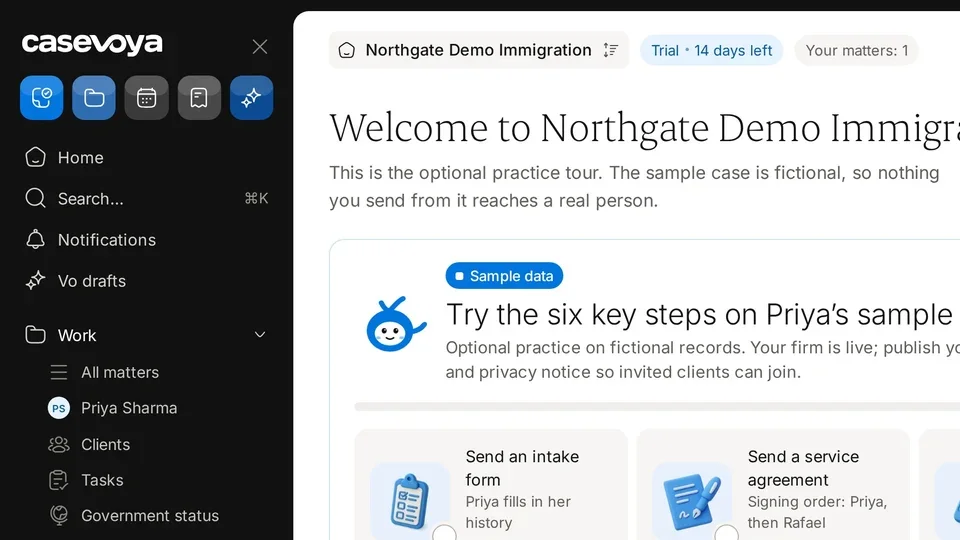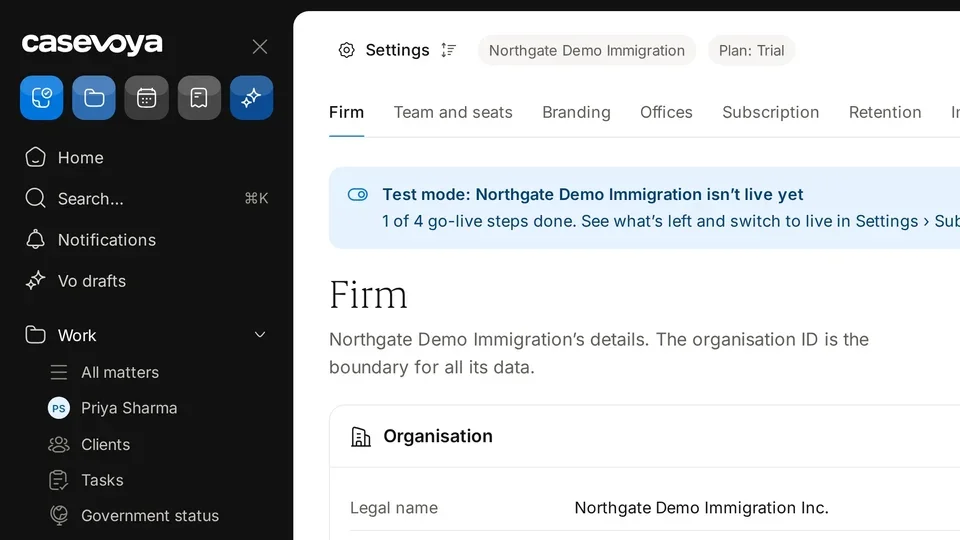
Your Home screen

Home is your daily starting point, showing what needs you, setup gaps, and quick ways to start work. Here is a quick tour.

1:26 video·Captions and transcript·1 written guide

01Overview
0:00 / 1:26

Chapters

9

Start your day from Home

Home shows what needs you, flags setup gaps, and gives you shortcuts to common work, so you can plan your day from one screen.

  1. 1

    Open Home

    Select Home at the top of the left sidebar. The header shows your firm and the Your matters count.

  2. 2

    Clear setup alerts

    For each yellow alert, such as Your enquiry page isn't taking enquiries or Clients can't accept portal invitations yet, select Review and publish.

  3. 3

    Start common work

    Use the quick actions: New lead, Request document, Book consultation, Issue invoice, or Ask Vo for a draft.

  4. 4

    Scan Your practice today

    Check documents tracked and Needs you for tasks due today, documents awaiting review, blocked matters and financial exceptions. Select View all matters to see every matter.

  5. 5

    Check notifications

    In the right rail, review recent items under Notifications and select All for the full feed.
Screen by screen

Each frame comes from the walkthrough, with the part being explained outlined. Select a frame to play from that moment.

  1. 02Find it

    Home sits at the top of the left sidebar, along with Search and Notifications.

  2. 03Header

    In the header, you see the firm, Northgate Demo Immigration, and a chip reading Your matters: 1. On the right are Search and New.

  3. 04Greeting

    The greeting says Good morning, Demo. Below it is Friday 30 October, Toronto. Nothing is waiting for your review, but setup still needs you.

  4. 05Setup alerts

    Two yellow alerts flag setup gaps: your enquiry page isn't taking enquiries, and clients can't accept portal invitations yet. Each has a Review and publish link.

  5. 06Quick actions

    Quick actions start common work: New lead, Request document, Book consultation, Issue invoice, and Ask Vo for a draft.

  6. 07Practice today

    Your practice today shows 0 documents tracked; Needs you, with 0 tasks due today and 0 documents awaiting review; and No deadlines recorded yet, with View all matters.

  7. 08Notifications

    In the right rail, Notifications lists Sample case created, 2 h ago, with an All link.

  8. 09Recap

    To recap: start from Home, check the header, clear setup alerts, use quick actions, and scan your practice today. Next: All matters.

Did this answer your question?

More in Getting started