Vo drafts lets you review AI drafts made from your firm's records before anything happens. This tour covers the page.
1:21 video·Captions and transcript·1 written guide
01Overview
0:00 / 1:21
Chapters
9
Accept, edit or reject a draft
Every AI output is a draft. A person decides what happens to it.
1
Find the draft
Open Vo drafts from the sparkle icon at the top of the sidebar.
2
Read the sources
Each draft links to the records it used.
3
Accept, edit or reject
Accepted drafts become normal actions you send yourself. Rejections are logged.
4
Consultant review
Anything that reads as legal advice needs the responsible consultant’s review.
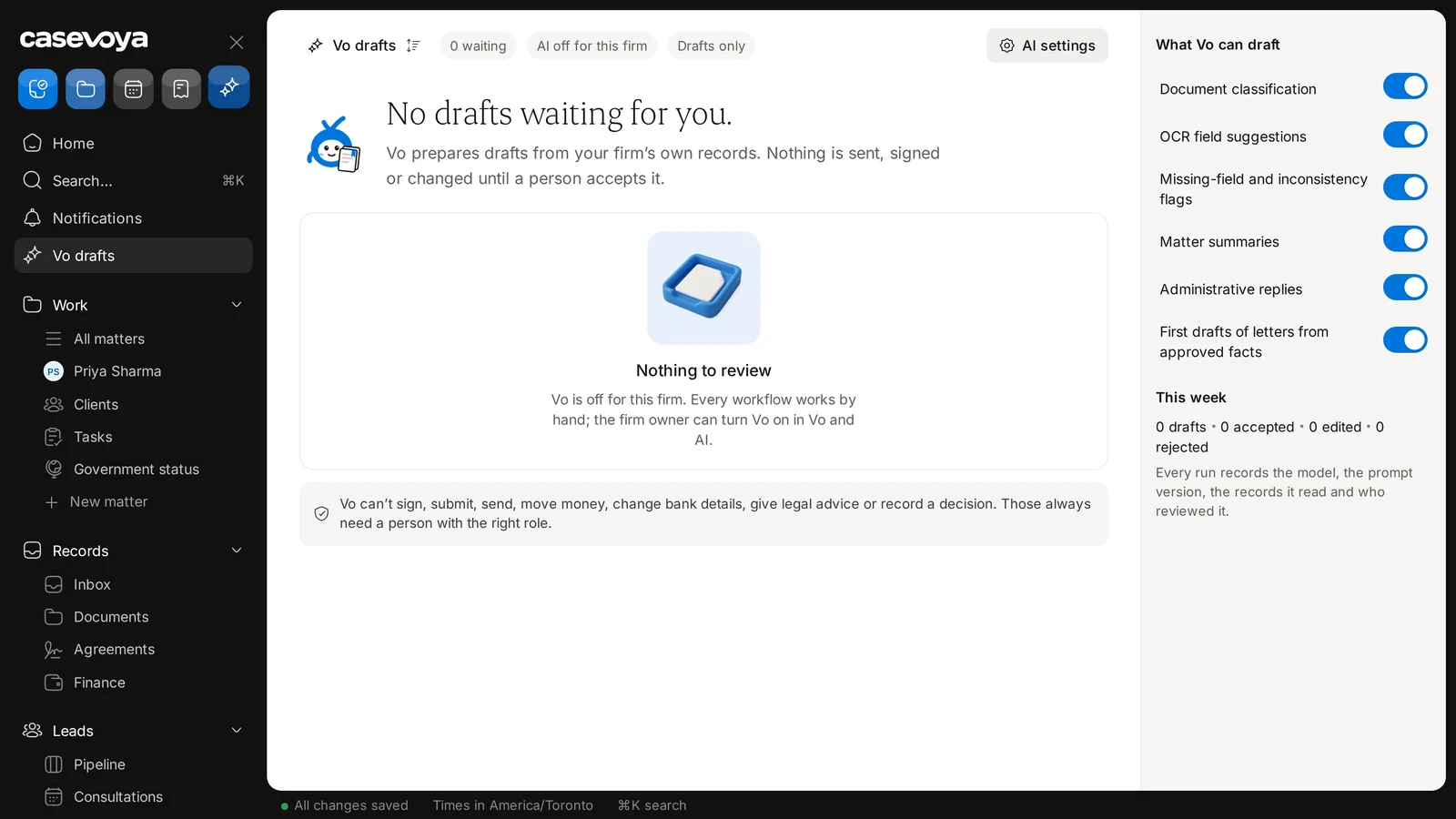
Open Vo drafts from the sparkle icon at the top of the sidebar.
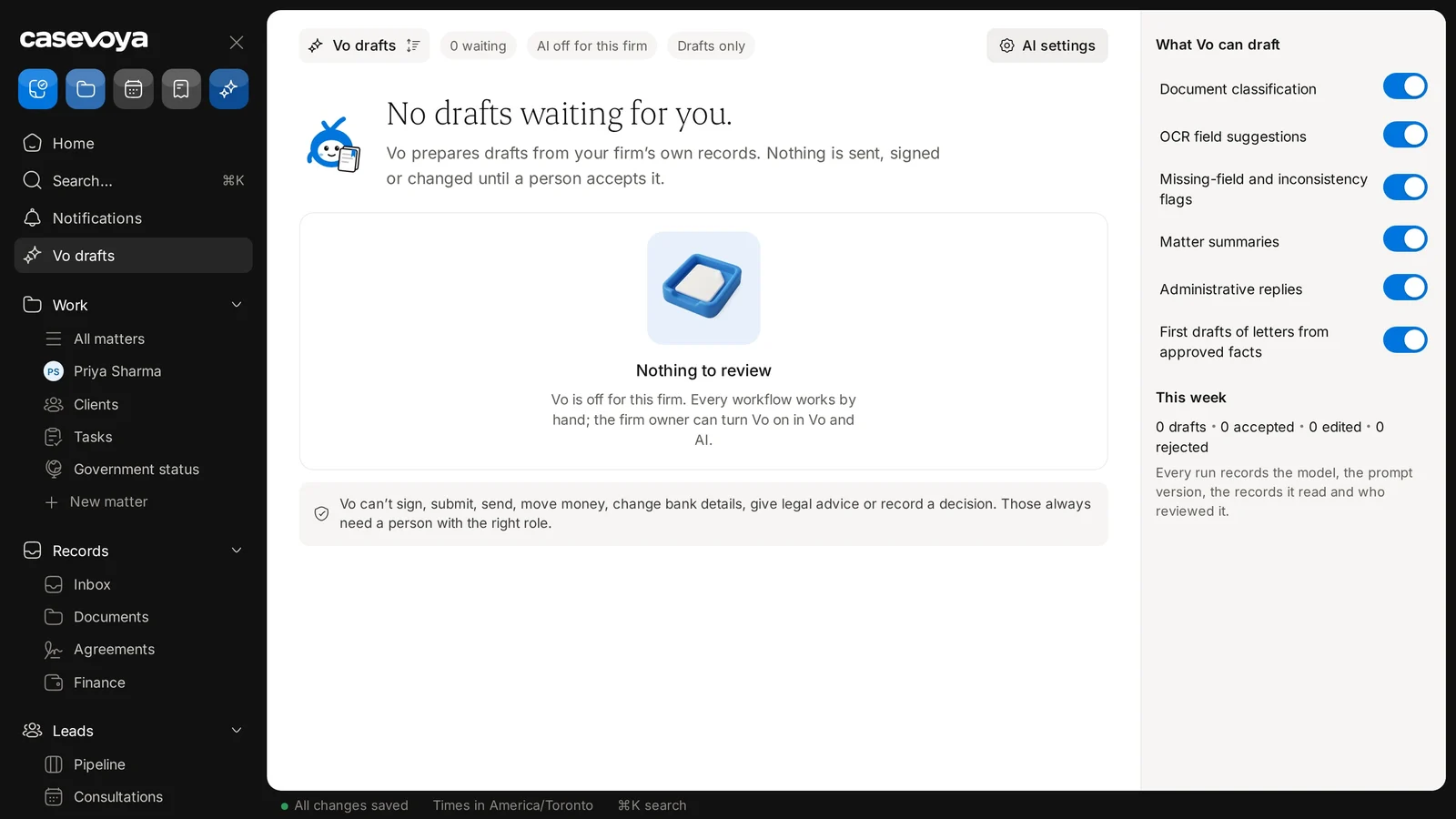
The Vo drafts header: nothing is sent, signed or changed until a person accepts it.
Screen by screen
Each frame comes from the walkthrough, with the part being explained outlined. Select a frame to play from that moment.
02Find it
Open it from the sparkle icon at the top of the sidebar.
03Header
The header reads Vo drafts. The subtitle says Vo prepares drafts from your firm's own records, and nothing is sent, signed or changed until a person accepts it.
04Status chips
Chips show 0 waiting, AI off for this firm and Drafts only. The AI settings button is at the top right.
05Empty state
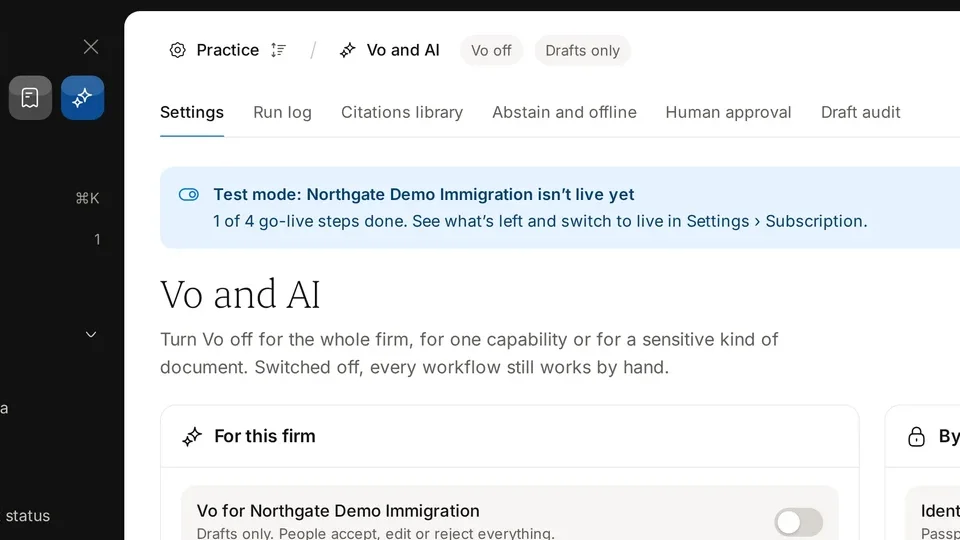
The empty card says Vo is off for this firm. Every workflow works by hand, and the firm owner can turn Vo on in Vo and AI.
06Hard limits
Vo can't sign, submit, send, move money, change bank details, give legal advice or record a decision. Those always need a person.
07What Vo drafts
On the right, What Vo can draft lists six options, from Document classification to first drafts of letters. All six are on, but they only take effect once Vo is turned on.
08This week
This week shows 0 drafts, 0 accepted, 0 edited and 0 rejected. Every run records the model, prompt version, records read and reviewer.
09Recap
In short: open the sparkle icon, read the chips, respect the hard limits, check what Vo can draft, and watch this week's counts. Next: Vo and AI.
Overview. Vo drafts lets you review AI drafts made from your firm's records before anything happens. This tour covers the page.
Find it. Open it from the sparkle icon at the top of the sidebar.
Header. The header reads Vo drafts. The subtitle says Vo prepares drafts from your firm's own records, and nothing is sent, signed or changed until a person accepts it.
Status chips. Chips show 0 waiting, AI off for this firm and Drafts only. The AI settings button is at the top right.
Empty state. The empty card says Vo is off for this firm. Every workflow works by hand, and the firm owner can turn Vo on in Vo and AI.
Hard limits. Vo can't sign, submit, send, move money, change bank details, give legal advice or record a decision. Those always need a person.
What Vo drafts. On the right, What Vo can draft lists six options, from Document classification to first drafts of letters. All six are on, but they only take effect once Vo is turned on.
This week. This week shows 0 drafts, 0 accepted, 0 edited and 0 rejected. Every run records the model, prompt version, records read and reviewer.
Recap. In short: open the sparkle icon, read the chips, respect the hard limits, check what Vo can draft, and watch this week's counts. Next: Vo and AI.
 Casevoya