Inbox lets you read every client conversation across your matters in one place. Here is a quick tour.
1:22 video·Captions and transcript·1 written guide
01Overview
0:00 / 1:22
Chapters
9
Import email safely from Gmail or Outlook
Bring client emails into the right matter without exposing your whole mailbox.
1
Connect your mailbox
Choose Gmail or Outlook and approve read access to selected labels or folders only.
2
Review Email to triage
Go to Records › Inbox and open Email to triage. Email forwarded to the firm, or to a matter’s own address, waits there. Nothing is filed automatically.
3
File to a matter
Pick the matter and choose who can see it.
4
Attachments
Attachments are scanned before anyone opens them.
Inbox tabs, including Email to triage. Sample data.
Once filed to a matter, a client’s email appears in Conversations. Sample data.
Screen by screen
Each frame comes from the walkthrough, with the part being explained outlined. Select a frame to play from that moment.
02Where you are
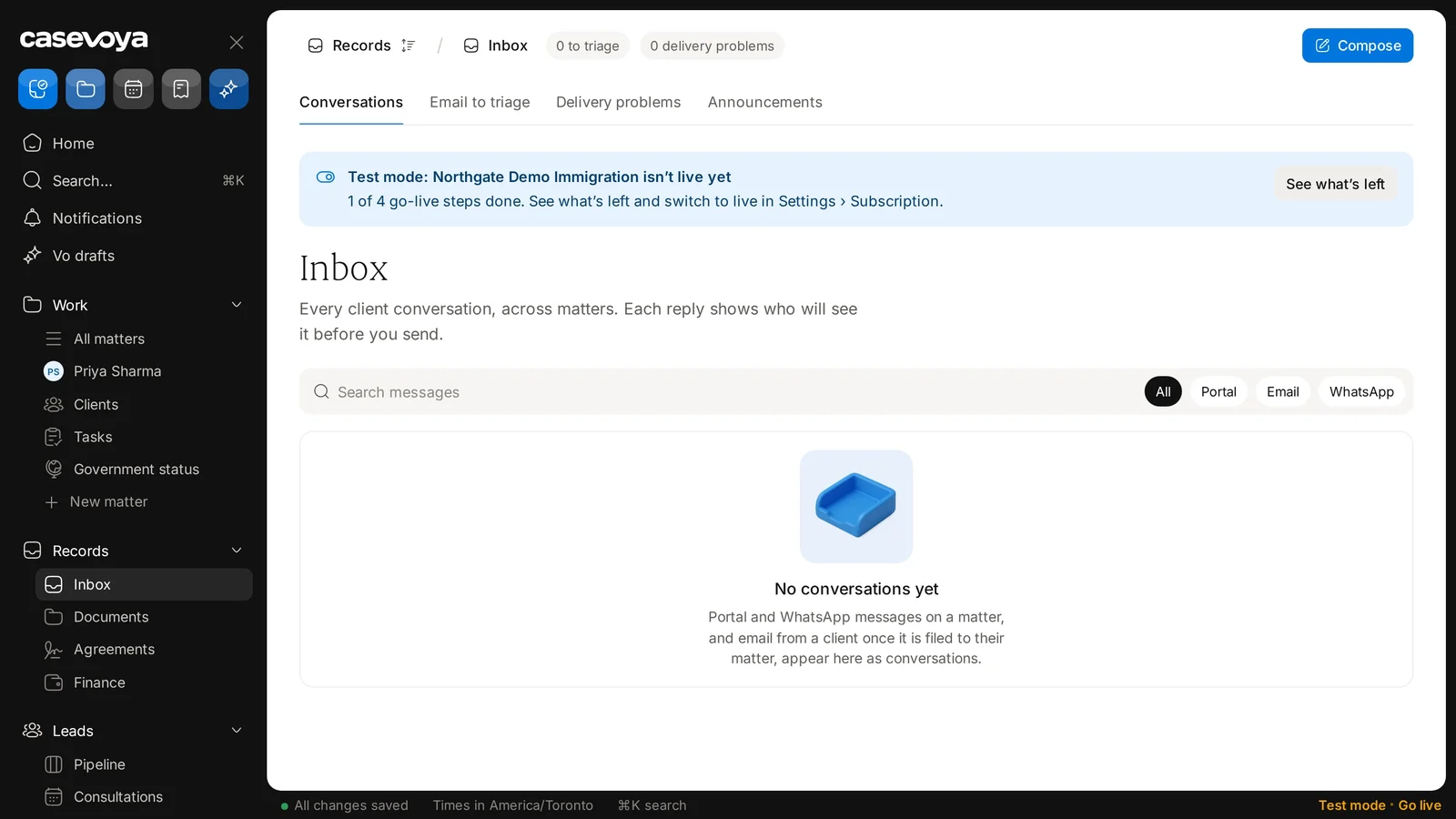
The header breadcrumb shows where you are: Records, then Inbox. Two counters sit beside it: 0 to triage and 0 delivery problems.
03Tabs
Below are four tabs: Conversations, Email to triage, Delivery problems, and Announcements. Conversations is open now.
04Page purpose
The Inbox heading explains the page: every client conversation across matters, with each reply showing who will see it before you send.
05Search, filter
Use Search messages to find a message, then narrow by channel with All, Portal, Email, or WhatsApp.
06Empty state
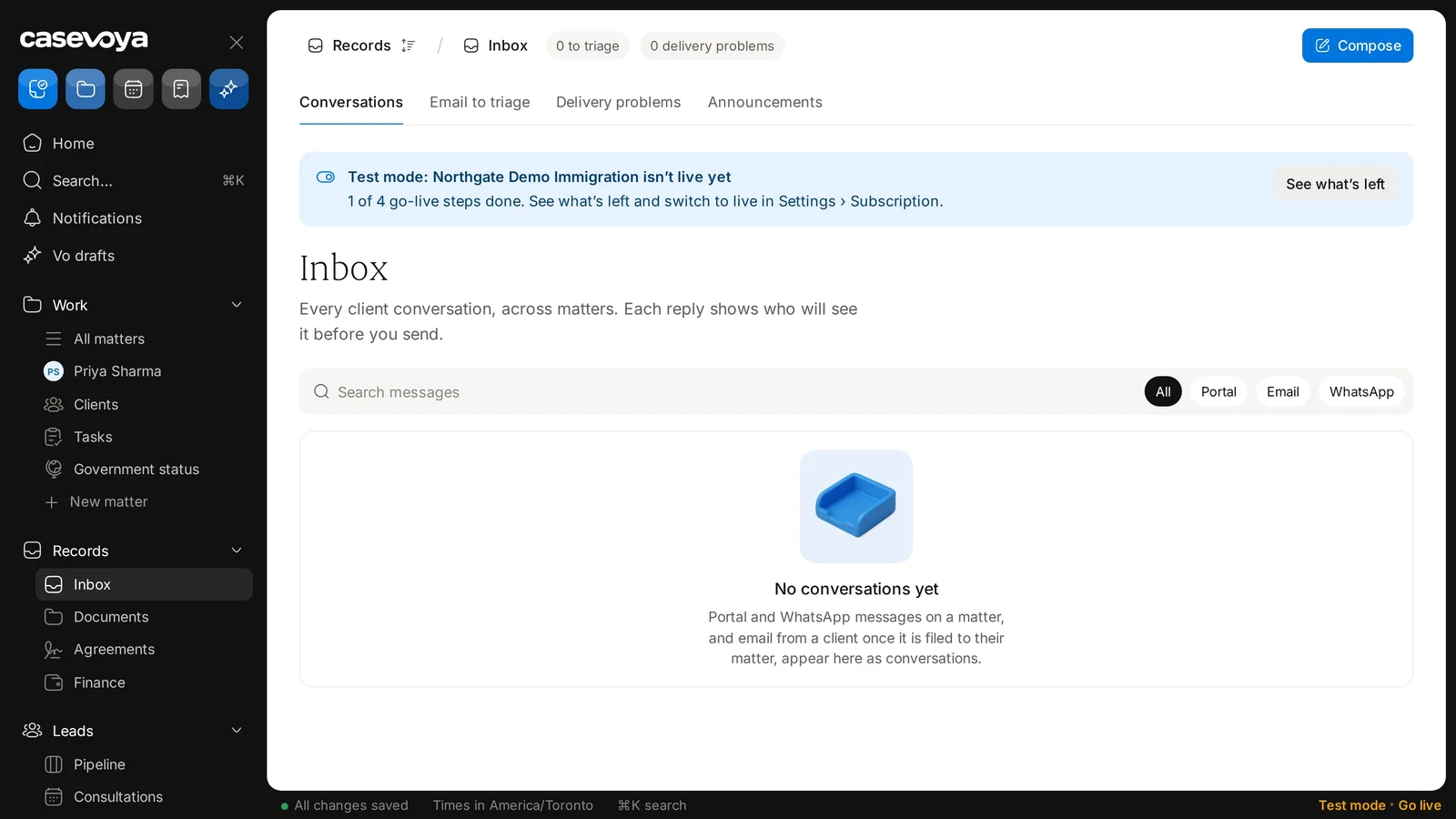
This fictional demo firm has no conversations yet. Portal and WhatsApp messages on a matter, and email from a client once it is filed to their matter, appear here as conversations.
07Compose
To start a new message, use the Compose button at the top right.
08Test mode
A banner notes test mode: Northgate Demo Immigration, a fictional firm, isn't live yet and has 1 of 4 go-live steps done. See what's left, and switch to live in Settings, Subscription. The footer shows times in America/Toronto.
09Recap
To recap: check the counters, pick a tab, search and filter by channel, and use Compose for new messages. Next: the Email to triage tab.
Overview. Inbox lets you read every client conversation across your matters in one place. Here is a quick tour.
Where you are. The header breadcrumb shows where you are: Records, then Inbox. Two counters sit beside it: 0 to triage and 0 delivery problems.
Tabs. Below are four tabs: Conversations, Email to triage, Delivery problems, and Announcements. Conversations is open now.
Page purpose. The Inbox heading explains the page: every client conversation across matters, with each reply showing who will see it before you send.
Search, filter. Use Search messages to find a message, then narrow by channel with All, Portal, Email, or WhatsApp.
Empty state. This fictional demo firm has no conversations yet. Portal and WhatsApp messages on a matter, and email from a client once it is filed to their matter, appear here as conversations.
Compose. To start a new message, use the Compose button at the top right.
Test mode. A banner notes test mode: Northgate Demo Immigration, a fictional firm, isn't live yet and has 1 of 4 go-live steps done. See what's left, and switch to live in Settings, Subscription. The footer shows times in America/Toronto.
Recap. To recap: check the counters, pick a tab, search and filter by channel, and use Compose for new messages. Next: the Email to triage tab.
 Casevoya