Finance, invoices and payments

Finance is where you invoice your firm's earned fees and track what clients owe and what they pay by card. Here is a quick tour.

1:24 video·Captions and transcript·4 written guides

01Overview
0:00 / 1:24

Chapters

10

Issue an invoice

Invoice for work you’ve delivered, with lines by category so clients see exactly what they’re paying for.

  1. 1

    Open Finance

    In the sidebar, under Records, choose Finance and select New invoice at the top right. Staff log billable time on a matter’s Billing tab.

  2. 2

    Add lines

    Professional fees, disbursements and taxes, each on its own line. Government fees go on as a disbursement with their official source.

  3. 3

    Check the services are recorded

    An earned-fee invoice needs delivered services or incurred costs behind it. Before that, use a quote or an advance request.

  4. 4

    Issue it

    Once issued, an invoice can’t be edited. To fix one, issue a credit note. The client sees it with your firm named as the payee.
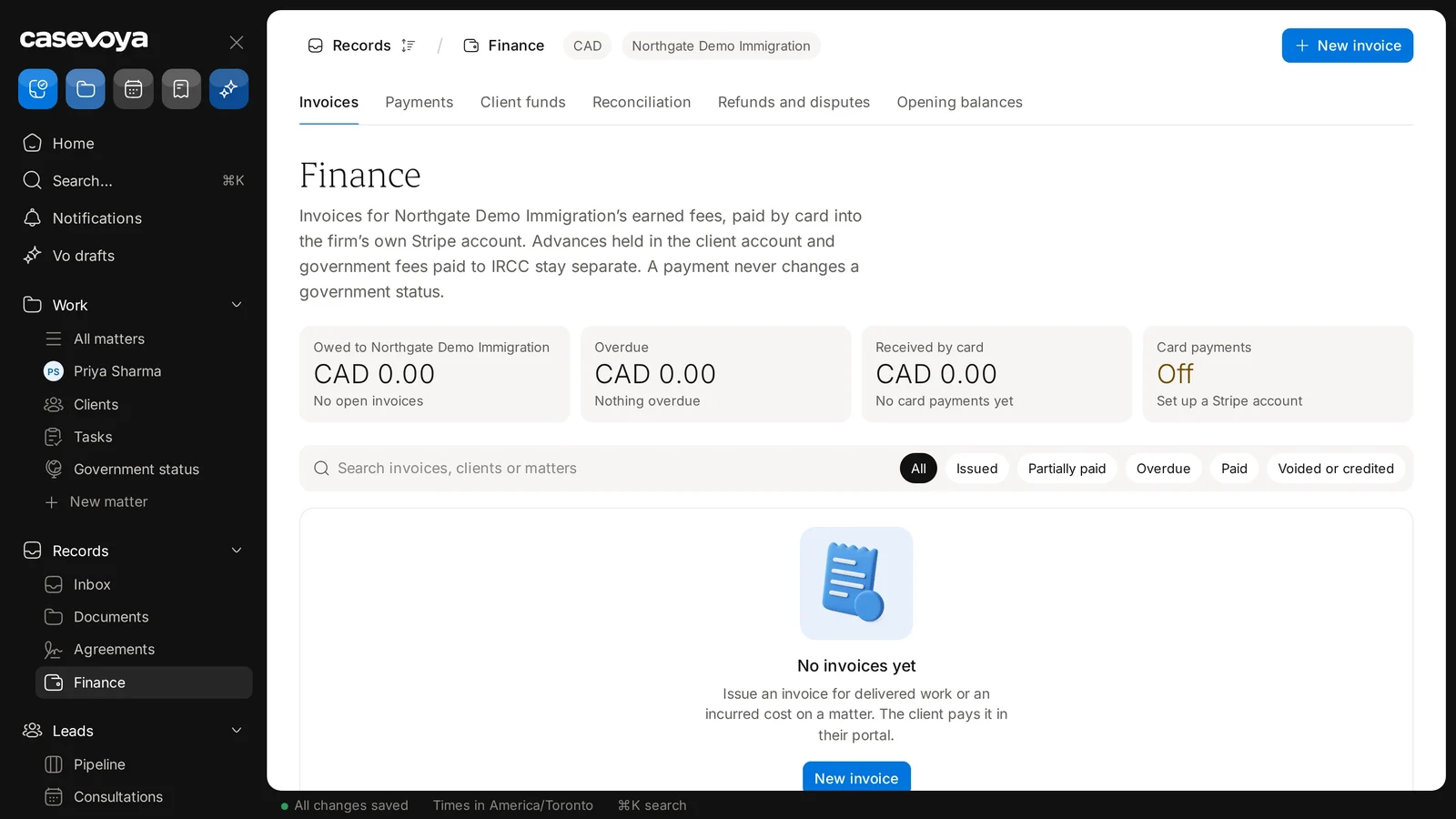
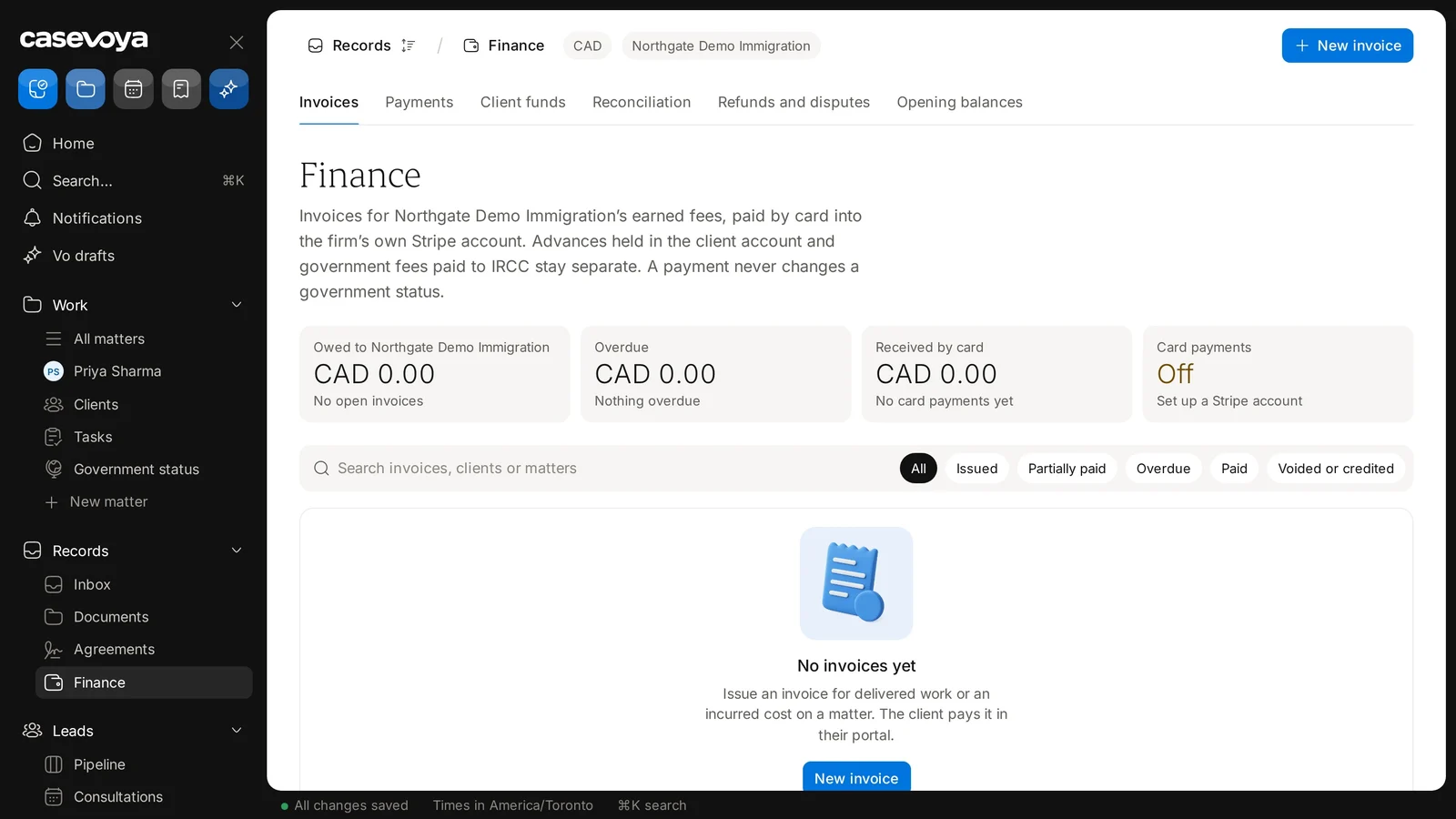
Finance under Records, with the New invoice button. Sample data.
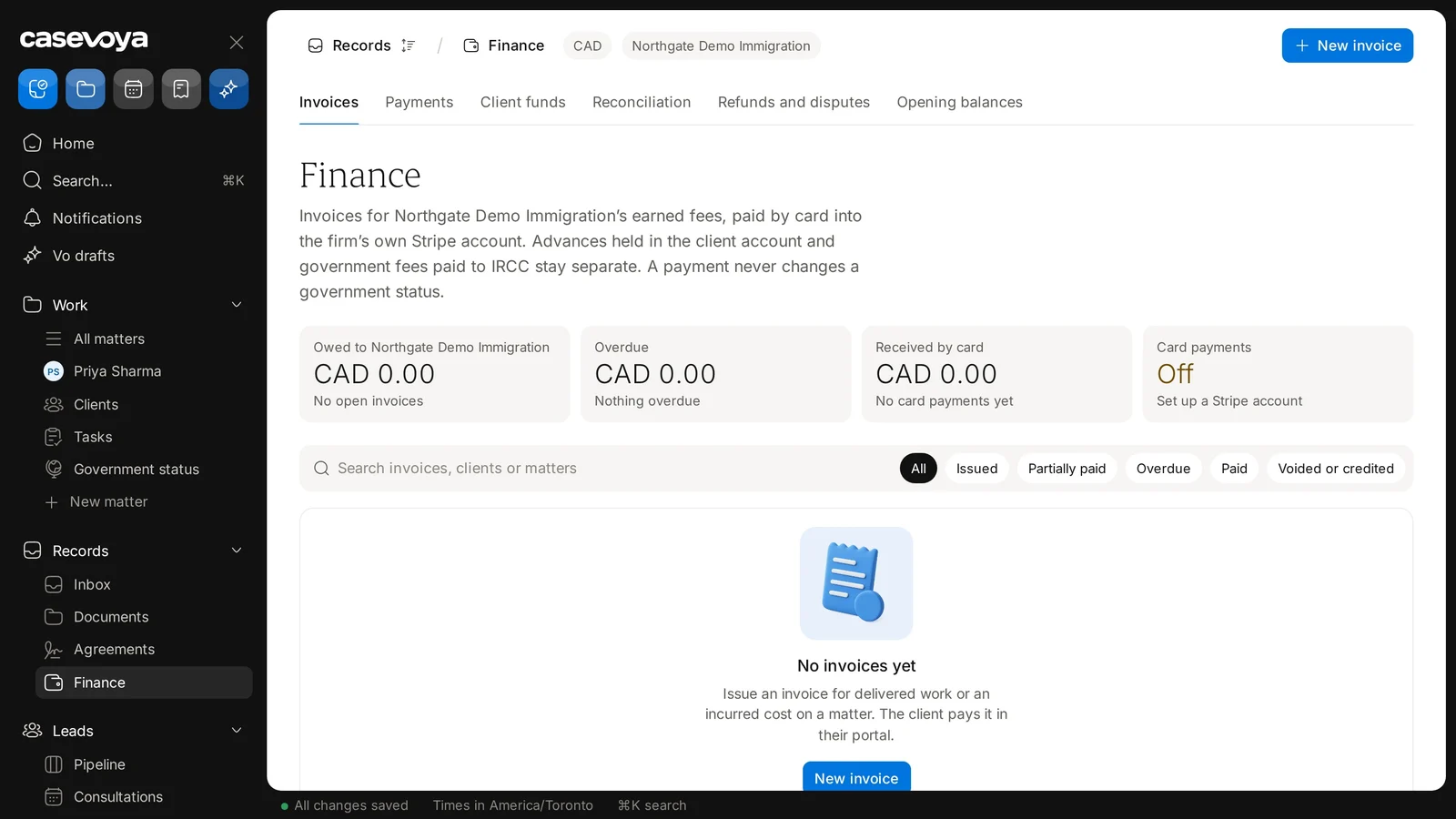
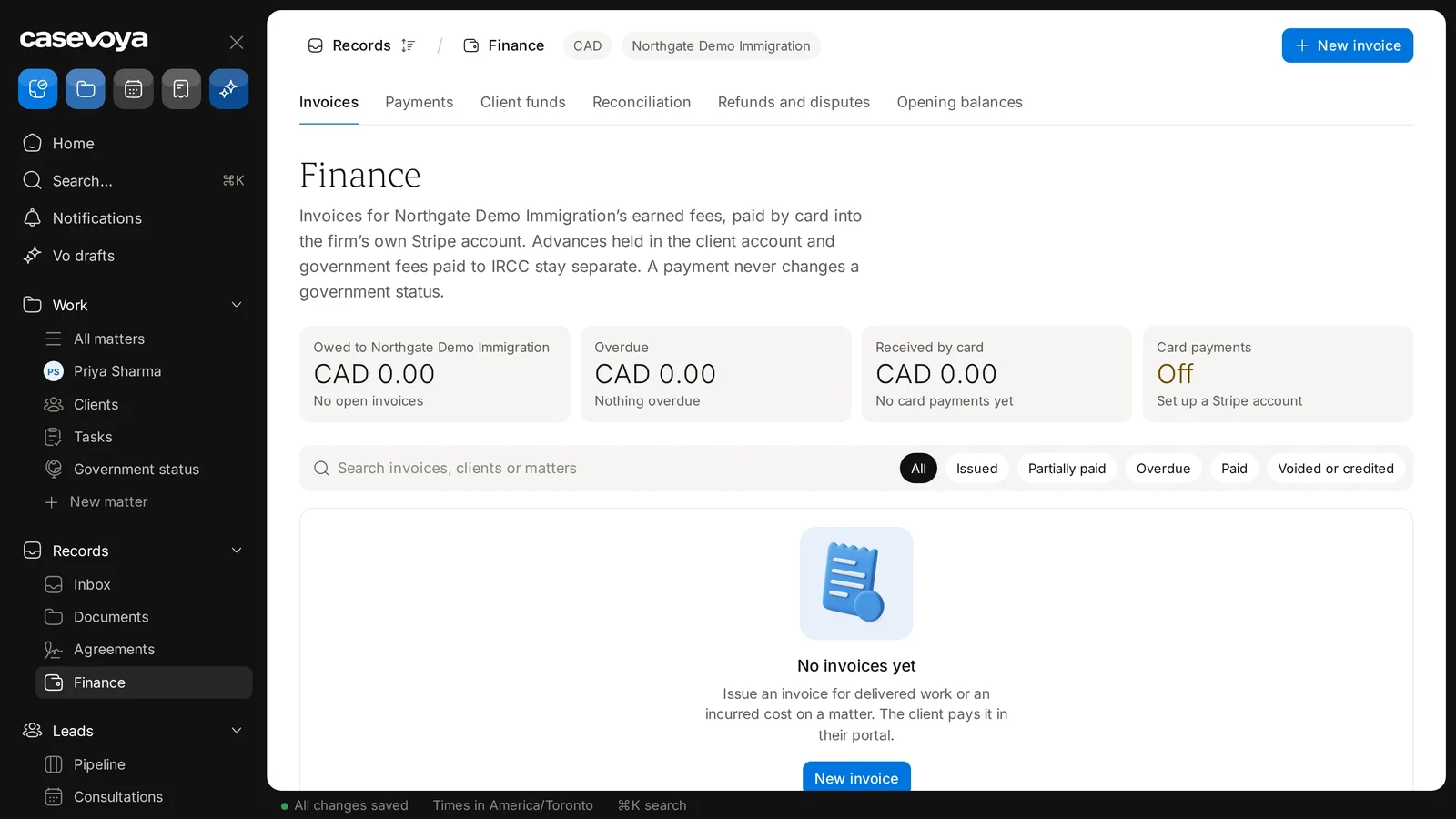
Filter invoices by state: Issued, Partially paid, Overdue, Paid, or Voided or credited. Sample data.

Record a manual bank payment

When a client pays by bank transfer, record it so the invoice and the ledger agree.

  1. 1

    Open Finance, then Payments

    In the sidebar, under Records, choose Finance and open the Payments tab to record the payment.

  2. 2

    Enter the details

    Amount, date, bank reference and which account received it.

  3. 3

    Attach proof

    Add the bank statement line or remittance note.

  4. 4

    It stays pending

    The payment stays pending until it’s matched on the Reconciliation tab.

Finance tabs, including Payments. Sample data.
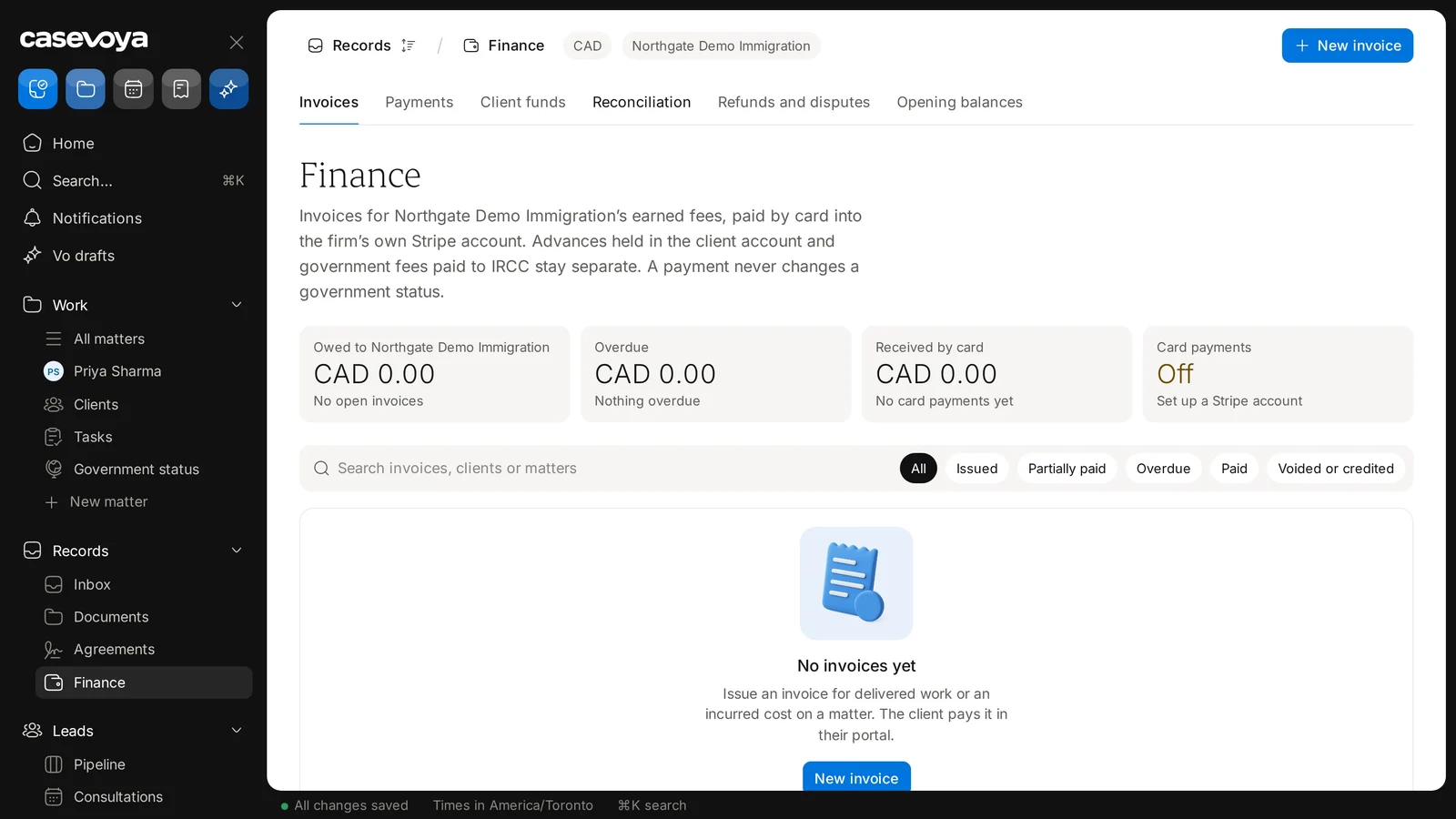
More Finance tabs, including Reconciliation, where manual payments are matched. Sample data.

Advance payments and the client account

Money paid before work is done belongs to the client until it’s earned. Casevoya keeps it separate.

  1. 1

    Send an advance request

    Not an invoice. The client sees it as money held for them.

  2. 2

    Receive it into the client account

    It shows on Finance › Client funds as money held for the client, a liability, not revenue.

  3. 3

    Transfer what’s earned

    When work is delivered, raise an earned-fee transfer. It needs approval, and only verified funds can be moved.

  4. 4

    Reconcile monthly

    Use Finance › Reconciliation. Bank, ledger and client balances should agree; differences are flagged.

Finance tabs: Invoices, Payments and Client funds.
Client account advances and government fees stay separate from invoices.

Refunds, credits and disputes

Refunds, credit notes and disputes each have their own record, so nothing gets counted twice.

  1. 1

    Credit an invoice

    Issued invoices can’t be edited. Use a credit note to reduce or cancel what the client owes.

  2. 2

    Refund a payment

    Choose the payment and the amount. Partial refunds are fine. Refunding a payment is not the same as crediting an invoice.

  3. 3

    Track a dispute

    Open Finance › Refunds and disputes. Each dispute has its own status and the evidence you send.

  4. 4

    Client view

    Clients see “Refund on its way” with a typical timeframe, then “Refunded”.

Finance tabs, including Refunds and disputes. Sample data.
Invoice filters, including Voided or credited. Sample data.

Screen by screen

Each frame comes from the walkthrough, with the part being explained outlined. Select a frame to play from that moment.

  1. 02Find it

    Open Finance from the left sidebar, under Records.

  2. 03Header

    The header shows the currency, CAD, and the demo firm, Northgate Demo Immigration, with a New invoice button at the top right.

  3. 04Tabs

    Tabs run across the top: Invoices, Payments, and Client funds.

  4. 05More tabs

    They continue with Reconciliation, Refunds and disputes, and Opening balances.

  5. 06Separation

    The description sets the rule: client account advances and government fees paid to IRCC stay separate, and a payment never changes a government status.

  6. 07Summary cards

    Four cards give a summary: Owed, Overdue, and Received by card, all CAD 0.00 here. The last card, Card payments, shows Off until a Stripe account is set up.

  7. 08Filter

    Search invoices, clients or matters, then filter by All, Issued, Partially paid, Overdue, Paid, or Voided or credited.

  8. 09Empty state

    For now, it says No invoices yet. You issue an invoice for delivered work or an incurred cost on a matter, and the client pays it in their portal. Start with New invoice.

  9. 10Recap

    To recap: open Finance under Records, check the tabs, read the four cards, search and filter, and start a New invoice. Next: Payments.

Did this answer your question?

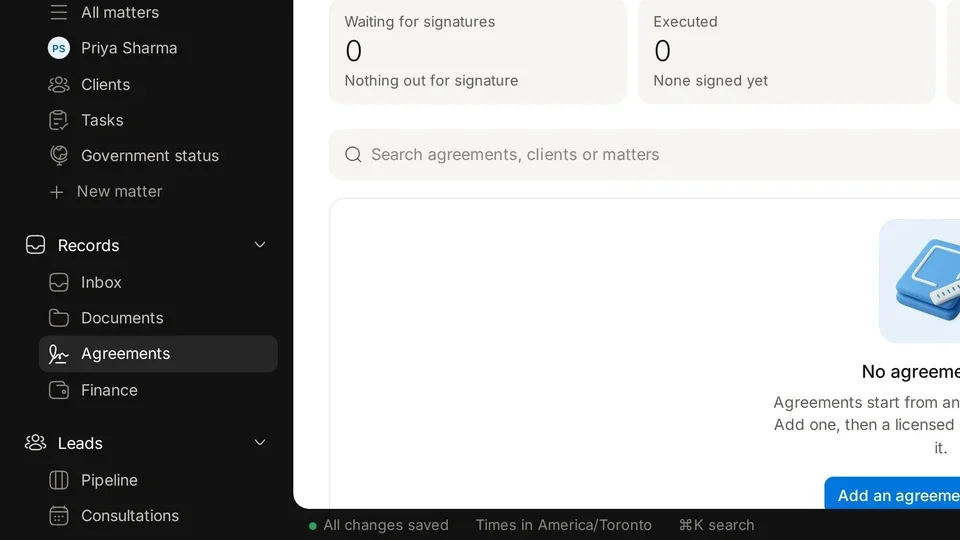
More in Agreements and money