Vo and AI settings

Vo and AI lets you control where Vo may work: firm-wide, per capability or per document type. This tour covers the page.

1:14 video·Captions and transcript·2 written guides

01Overview
0:00 / 1:14

Chapters

10

Turn AI drafts on or off for your firm

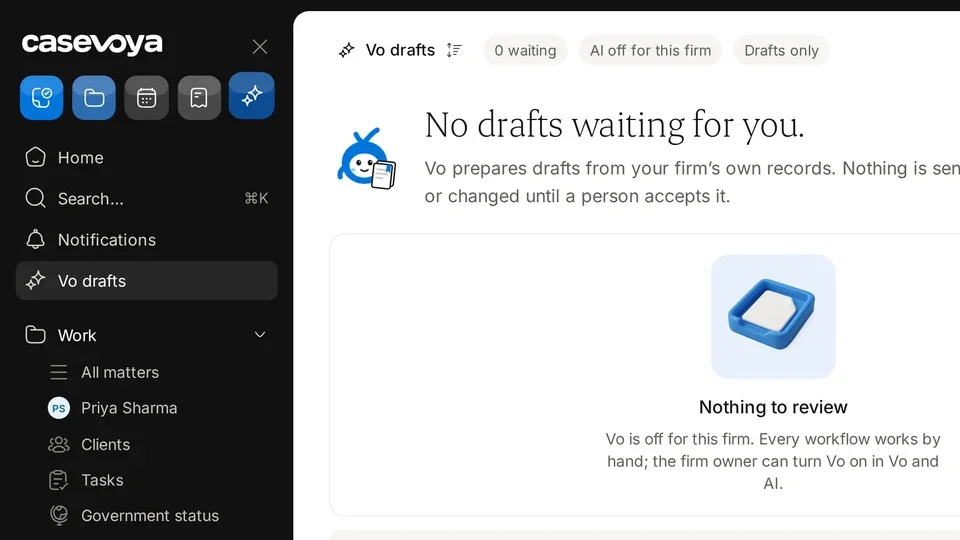
AI drafts are optional. Everything in Casevoya works without them.

  1. 1

    Open Vo and AI

    In the sidebar, under Practice, choose Vo and AI. Owners only.

  2. 2

    Choose what’s on

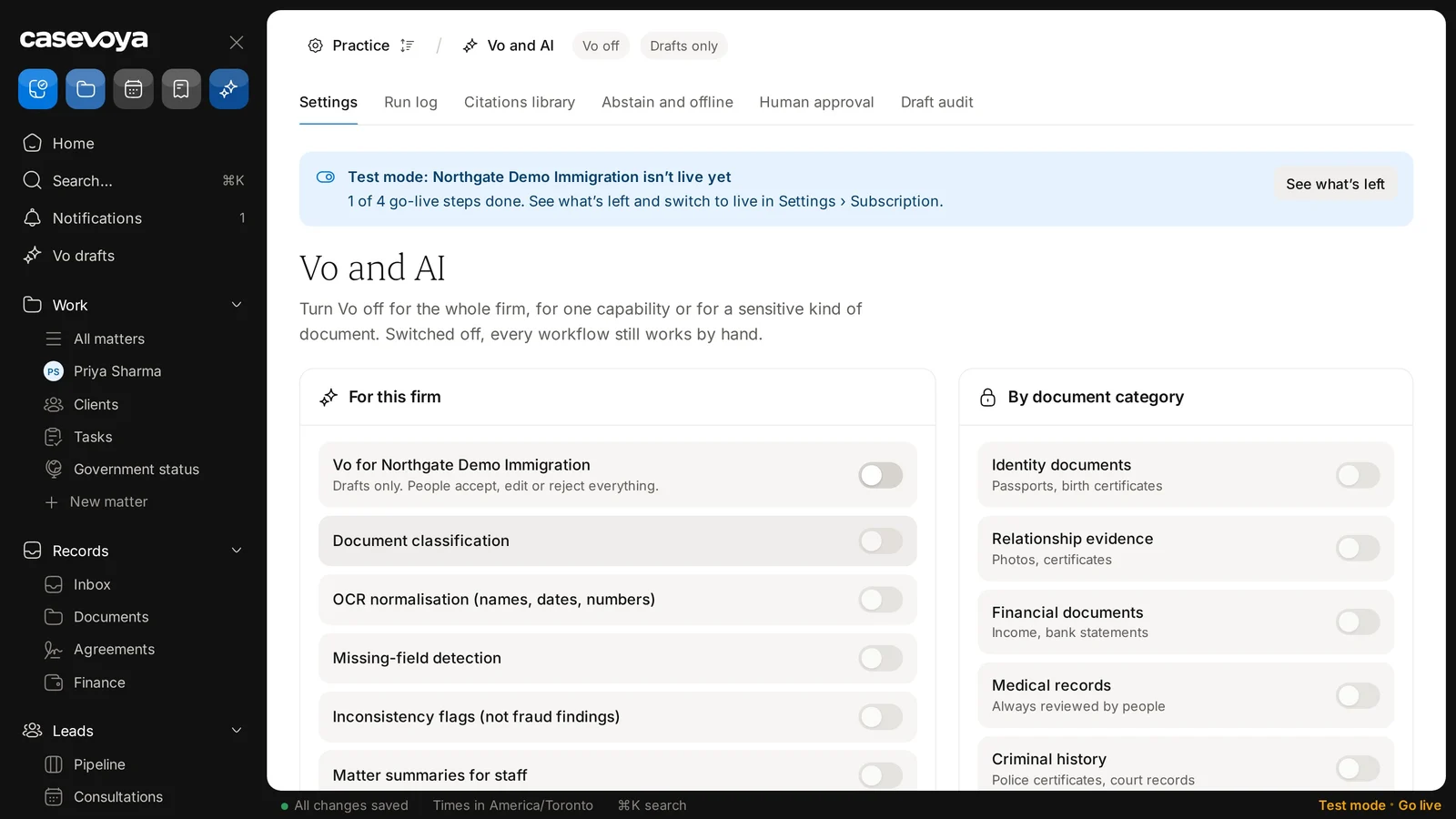
    Under For this firm, the main switch turns Vo on or off for the whole firm. Document classification, Missing-field detection, Matter summaries for staff and Administrative reply drafts can each be turned on or off.

  3. 3

    Exclude sensitive categories

    Under By document category, turn off Vo may read for a category. For example, Medical records or Criminal history can be excluded entirely.

  4. 4

    Client choice

    Clients can say no to AI help on their records. Their consultant sees that choice.
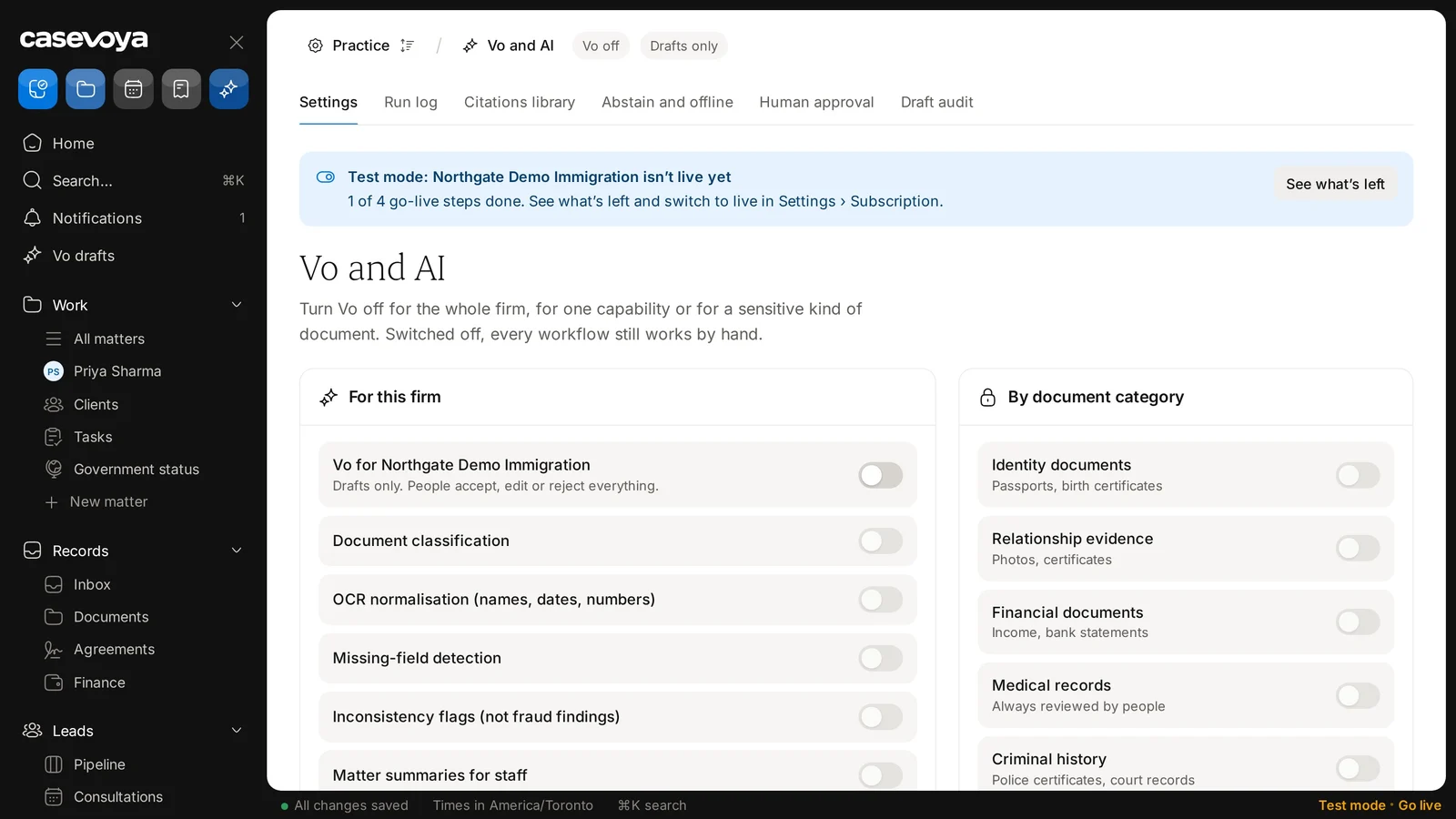
The firm switch under For this firm: drafts only, people accept, edit or reject everything.
Each capability has its own switch.

What AI drafts never do

Some things are only ever done by a person. This list is fixed and can’t be changed by settings.

  1. 1

    Never signs or submits

    AI can’t sign documents or submit anything to a government.

  2. 2

    Never moves money

    It can’t issue refunds or change bank details.

  3. 3

    Never decides

    It doesn’t infer an official decision or tell a client their chances.

  4. 4

    Never overrides records

    It can’t silently change a verified fact. Instructions hidden in uploaded files are ignored.

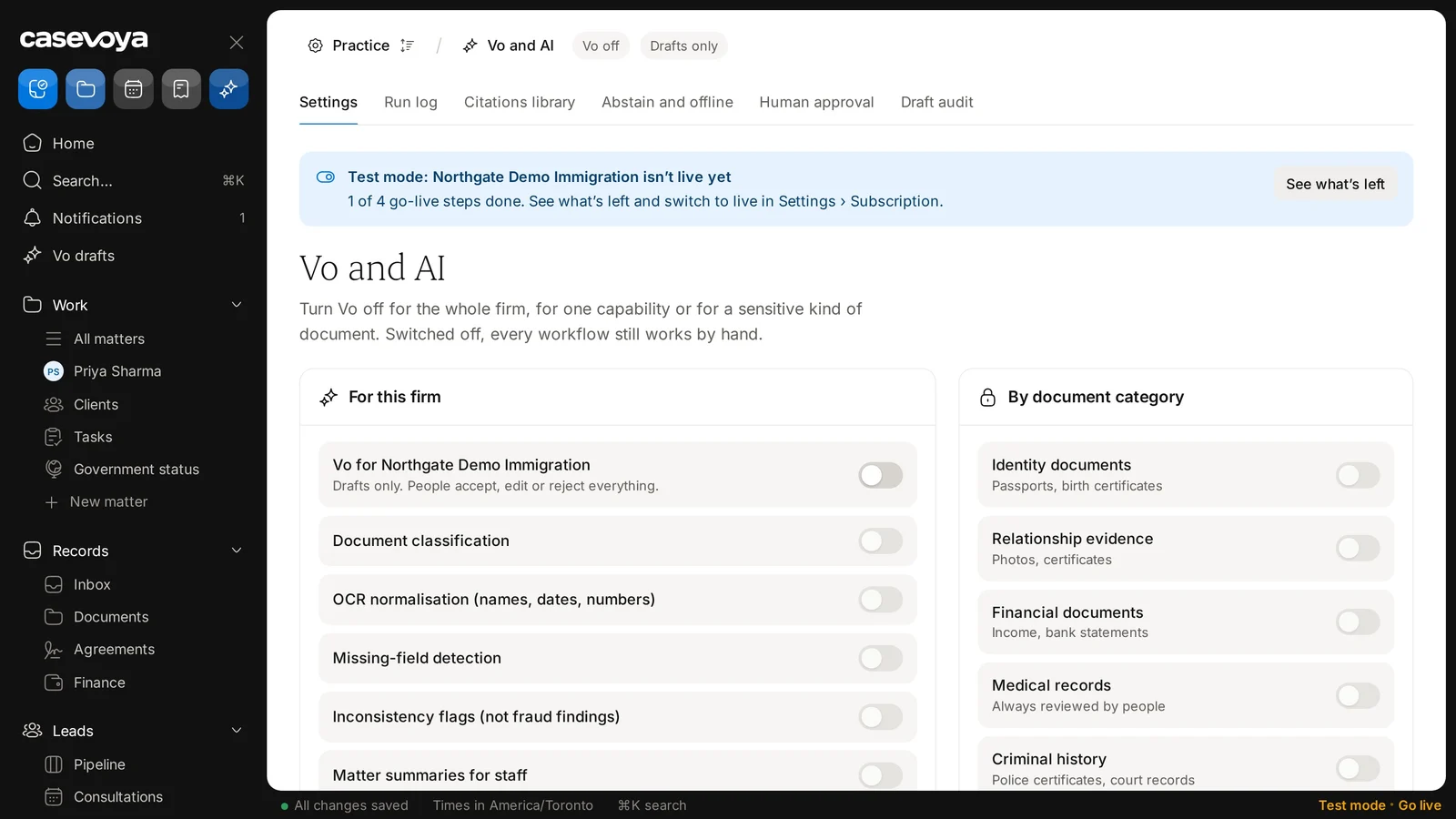
The firm switch for Vo. Drafts only: people accept, edit or reject everything. Sample data.
Vo and AI tabs, including Human approval and Draft audit. Sample data.

Screen by screen

Each frame comes from the walkthrough, with the part being explained outlined. Select a frame to play from that moment.

  1. 02Header chips

    At the top, two chips show the current state: Vo off and Drafts only.

  2. 03Tabs

    The Settings tab is open now; Run log, Citations library, Human approval and Draft audit sit beside it.

  3. 04Test mode

    A banner shows that the fictional demo firm is in test mode, with 1 of 4 go-live steps done. See what's left lists the rest.

  4. 05Three levels

    The intro sums it up: you can turn Vo off for the firm, for one capability or for a sensitive kind of document. With Vo off, every workflow still works by hand.

  5. 06Firm switch

    Under For this firm, the main switch controls Vo for Northgate Demo Immigration. Its note reads Drafts only: people accept, edit or reject everything.

  6. 07Capabilities

    Below, each capability has its own switch: Document classification, OCR normalisation, Missing-field detection, and Inconsistency flags, not fraud findings.

  7. 08Document types

    On the right, By document category sets whether Vo may read Identity documents, Financial documents or Criminal history.

  8. 09Medical records

    Even when Vo reads them, medical records are always reviewed by people.

  9. 10Recap

    In short: check the header chips, pick a tab, note test mode, set the firm switch, and choose capabilities and document types. Next: Vo drafts.

Did this answer your question?

More in Vo and AI drafts